LCD Shield kullanımı
Öncelikle kullanacağımız lcd shieldin datasheedini internetten bulmamız
gerekiyor.
Bizim kullanacağımız lcd shieldin üzerinde DFROBOT LCD yazıyor. Bu kelime
grubunu googlede aratarak datasheedini
buluyoruz.
Kodlarımızı arduinomuza atıyoruz:
//Sample using LiquidCrystal library
#include <LiquidCrystal.h>
/*******************************************************
This program will test the LCD panel and the buttons
Mark Bramwell, July 2010
********************************************************/
// select the pins used on the LCD panel
LiquidCrystal lcd(8, 9, 4, 5, 6, 7);
// define some values used by the panel and buttons
int lcd_key = 0;
int adc_key_in = 0;
#define btnRIGHT 0
#define btnUP 1
#define btnDOWN 2
#define btnLEFT 3
#define btnSELECT 4
#define btnNONE 5
// read the buttons
int read_LCD_buttons()
{
adc_key_in = analogRead(0); // read the value from the sensor
// my buttons when read are centered at these valies: 0, 144, 329, 504, 741
// we add approx 50 to those values and check to see if we are close
if (adc_key_in > 1000) return btnNONE; // We make this the 1st option for speed
reasons since it will be the most likely result
// For V1.1 us this threshold
if (adc_key_in < 50) return btnRIGHT;
if (adc_key_in < 250) return btnUP;
if (adc_key_in < 450) return btnDOWN;
if (adc_key_in < 650) return btnLEFT;
if (adc_key_in < 850) return btnSELECT;
// For V1.0 comment the other threshold and use the one below:
/*
if (adc_key_in < 50) return btnRIGHT;
if (adc_key_in < 195) return btnUP;
if (adc_key_in < 380) return btnDOWN;
if (adc_key_in < 555) return btnLEFT;
if (adc_key_in < 790) return btnSELECT;
*/
return btnNONE; // when all others fail, return this...
}
void setup()
{
lcd.begin(16, 2); // start the library
lcd.setCursor(0,0);
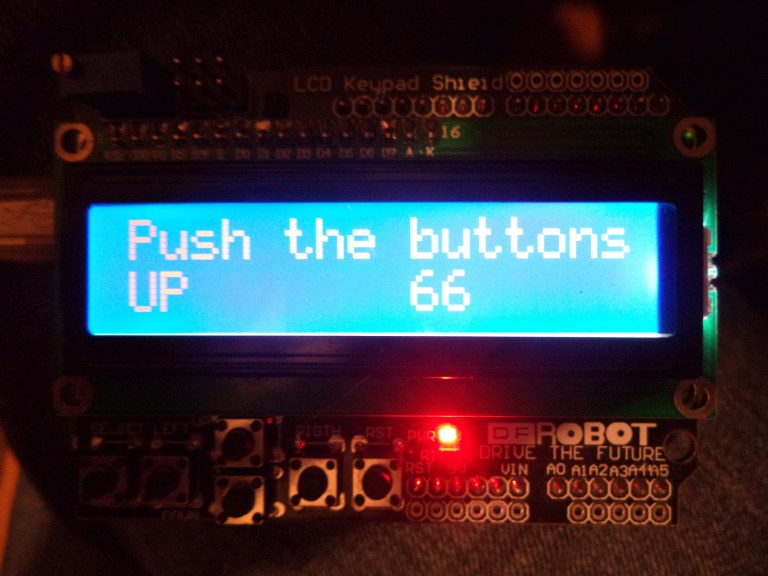
lcd.print("Push the buttons"); // print a simple message
}
void loop()
{
lcd.setCursor(9,1); // move cursor to second line "1" and 9 spaces over
lcd.print(millis()/1000); // display seconds elapsed since power-up
lcd.setCursor(0,1); // move to the begining of the second line
lcd_key = read_LCD_buttons(); // read the buttons
switch (lcd_key) // depending on which button was pushed, we perform an action
{
case btnRIGHT:
{
lcd.print("RIGHT ");
break;
}
case btnLEFT:
{
lcd.print("LEFT ");
break;
}
case btnUP:
{
lcd.print("UP ");
break;
}
case btnDOWN:
{
lcd.print("DOWN ");
break;
}
case btnSELECT:
{
lcd.print("SELECT");
break;
}
case btnNONE:
{
lcd.print("NONE ");
break;
}
}
}
Example use of Enhanced LiquidCrystal_I2C library(Not updated)
This library inherits LiquidCrystal and adds another method: button - to read
button pushed on a keypad. This works on the Old version of the board V1.0
Library Forum
/*
DFRobot LCD Shield for Arduino
Key Grab v0.2
Written by Glendon Klassen
gjklassen@gmail.com
http://www.sourceforge.net/users/ecefixer
http://ecefixer.tumblr.com
Displays the currently pressed key on the LCD screen.
Key Codes (in left-to-right order):
None - 0
Select - 1
Left - 2
Up - 3
Down - 4
Right - 5
*/
#include <LiquidCrystal.h>
#include <DFR_Key.h>
//Pin assignments for DFRobot LCD Keypad Shield
LiquidCrystal lcd(8, 9, 4, 5, 6, 7);
//---------------------------------------------
DFR_Key keypad;
int localKey = 0;
String keyString = "";
void setup()
{
lcd.begin(16, 2);
lcd.clear();
lcd.setCursor(0, 0);
lcd.print("Key Grab v0.2");
delay(2500);
/*
OPTIONAL
keypad.setRate(x);
Sets the sample rate at once every x milliseconds.
Default: 10ms
*/
keypad.setRate(10);
}
void loop()
{
/*
keypad.getKey();
Grabs the current key.
Returns a non-zero integer corresponding to the pressed key,
OR
Returns 0 for no keys pressed,
OR
Returns -1 (sample wait) when no key is available to be sampled.
*/
localKey = keypad.getKey();
if (localKey != SAMPLE_WAIT)
{
lcd.clear();
lcd.setCursor(0, 0);
lcd.print("Current Key:");
lcd.setCursor(0, 1);
lcd.print(localKey);
}
}
Eklenti modülünü arduinomuza taktıktan sonra kodları derleyip arduinomuza attığımızda aşağıdaki gibi bir yazının lcdmizde görüntülendiğini görmemiz gerekiyor.
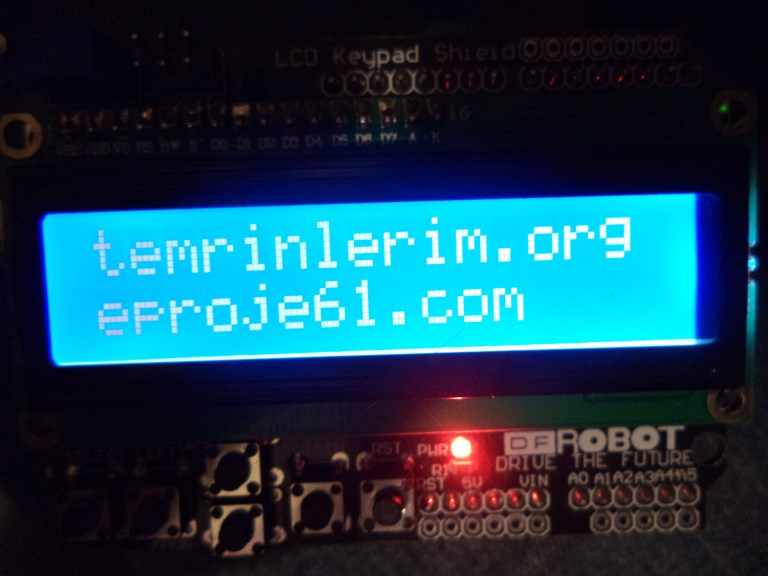
Şimdi de bu kodları editleyerek lcd de istediğimiz yazının görüntülenmesini
sağlayalım.
Kodlarımız:
//Sample using LiquidCrystal library
#include <LiquidCrystal.h>
/*******************************************************
This program will test the LCD panel and the buttons
Mark Bramwell, July 2010
********************************************************/
// select the pins used on the LCD panel
LiquidCrystal lcd(8, 9, 4, 5, 6, 7);
// define some values used by the panel and buttons
int lcd_key = 0;
int adc_key_in = 0;
#define btnRIGHT 0
#define btnUP 1
#define btnDOWN 2
#define btnLEFT 3
#define btnSELECT 4
#define btnNONE 5
// read the buttons
int read_LCD_buttons()
{
adc_key_in = analogRead(0); // read the value from the sensor
// my buttons when read are centered at these valies: 0, 144, 329, 504, 741
// we add approx 50 to those values and check to see if we are close
if (adc_key_in > 1000) return btnNONE; // We make this the 1st option for speed
reasons since it will be the most likely result
// For V1.1 us this threshold
if (adc_key_in < 50) return btnRIGHT;
if (adc_key_in < 250) return btnUP;
if (adc_key_in < 450) return btnDOWN;
if (adc_key_in < 650) return btnLEFT;
if (adc_key_in < 850) return btnSELECT;
// For V1.0 comment the other threshold and use the one below:
/*
if (adc_key_in < 50) return btnRIGHT;
if (adc_key_in < 195) return btnUP;
if (adc_key_in < 380) return btnDOWN;
if (adc_key_in < 555) return btnLEFT;
if (adc_key_in < 790) return btnSELECT;
*/
return btnNONE; // when all others fail, return this...
}
void setup()
{
lcd.begin(16, 2); // start the library
lcd.setCursor(0,0);
lcd.print("temrinlerim.org"); // print a simple message
}
void loop()
{
lcd.setCursor(9,1); // move cursor to second line "1" and 9 spaces over
lcd.setCursor(0,1); // move to the begining of the second line
lcd_key = read_LCD_buttons(); // read the buttons
lcd.print("eproje61.com"); // print a simple message
}
Şimdiki görüntümüz: